Chapter 04 · Researching colleges
Researching colleges
Use search, filters, and school details to investigate options before adding them to a student's list.
On this page
Search the college catalog#
- Open Research for general browsing, or Students → select a student → Colleges → Add Colleges to build a student's list.
- In Search, enter a school name or search text.
- Choose Add filter and the location controls to narrow results. Remove a filter chip to broaden the search.
- Change the sort or view, then open a school to inspect its details.
In student-context research, open the profile popout to inspect the student's information and apply its offered profile filters.
Add schools while researching#
- Open a result and choose Add to List. On a phone, tap the + beside the school name.
- If there are multiple lists, select the destination. Adding the school is immediate; open its list badge to edit fit and choose Done.
- On desktop, use the list dock to open the board and organize schools by fit, including dragging between lanes.
- On a phone, the fit band is a summary, not an interactive board. Use the header return navigation to open the list; an empty band offers View list.
See college lists for views, fit notes, and sharing.
Open school details and sources#
- Open the school's Admissions, Campus Life, or other available sections.
- Expand Show more details where present.
- Turn on Show sources to reveal source labels beside supported school facts.
- Follow Website or Application for the school's current instructions when confirming a requirement or deadline.
The existing Colorado School of Mines captures below illustrate the detail panels. They are captures from general research, not a saved entry on Joe's list, and may predate current controls.
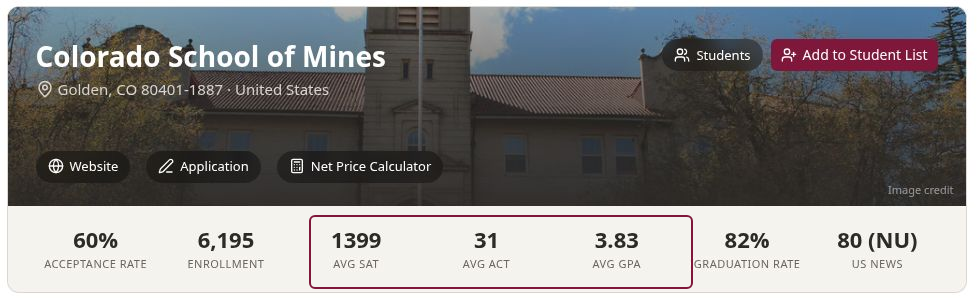
Start with the school name and location, then read the labels beneath the outlined figures. These are averages shown in the app at capture, not minimum scores or admission requirements.
Read the admissions charts#
- Open Admissions and find the SAT or ACT chart.
- Read the subject label. The shaded band runs from the 25th to 75th percentile; a median marker appears when available.
- In student-context research, look for the student's score marker when a score is recorded.
- For GPA, use the displayed Avg GPA or GPA Distribution (First-year) panel. Hover a distribution segment for its range and percentage.
These describe enrolled-student data, not minimum application requirements. Missing rows mean the values are unavailable.
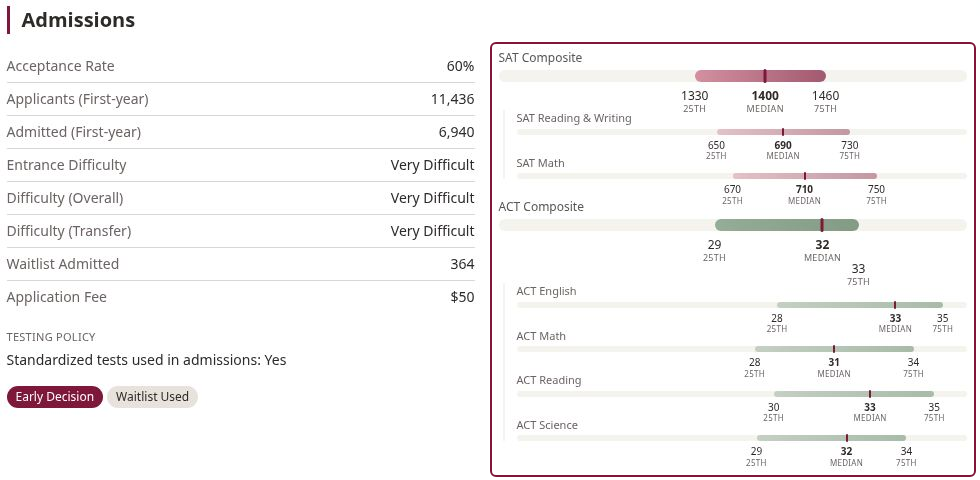
In this capture, the SAT Composite band runs from 1330 at the 25th percentile to 1460 at the 75th; its median marker is 1400. That median is a different statistic from the 1399 average in the summary. Read each subject's own row rather than applying the composite range to Math or Reading & Writing.
Find policies, requirements, and campus information#
- In Admissions, open Testing Policy, What They Consider, Application Requirements, and Coursework where available.
- Read the status and details for the relevant requirement.
- Open Campus Life for housing, organizations, activities, and services. Use Show more details to expand it.
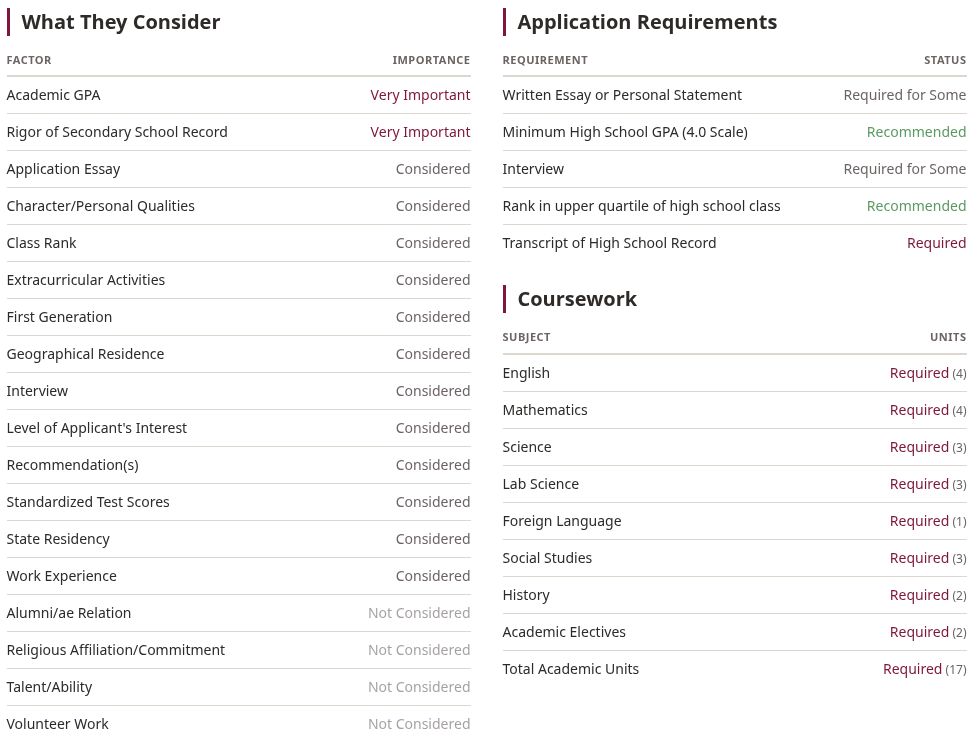
Read across the row: the left panel describes a factor's importance, while the right panels show requirement statuses and coursework units. “Required for Some” needs further investigation; it does not tell you whether Joe's particular application requires that item.
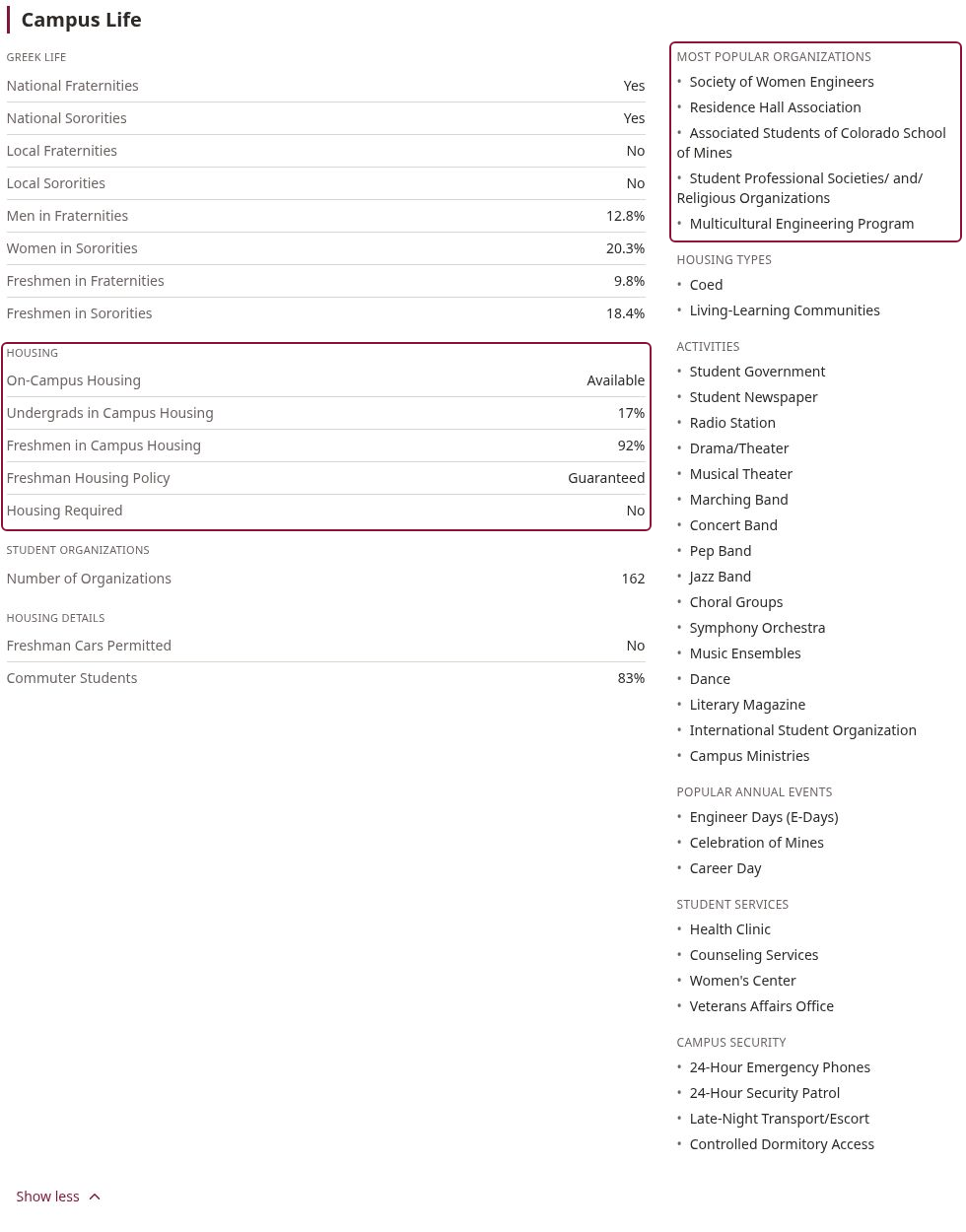
The housing block separates availability, the freshman policy, and whether housing is required. The organizations block includes engineering-related groups to investigate with Joe. Continue through activities and services to prepare questions about daily life on campus.
Source attribution#

Source attribution retained from the captured school-detail page. The burgundy outlines in this walkthrough are documentation annotations; the underlying app values have not been changed. Select any image to open it at full size.
The retained attribution identifies the providers in these captures. A year shown for cost or essays does not identify the reporting year of a test-score figure.
Find a college across your caseload#
Open Colleges beside the practice’s Dashboard and Students tabs. Search for a college to see which students have it on a list and who is applying, admitted or attending. Sort by student count to find schools that come up often in your practice.
When researching a single school, open Students on its detail page to see who already has it and open that student’s school record. To add the school for someone else, start in that student’s Colleges → Add Colleges.
Use AI Brainstorm#
- On an eligible premium practice, choose AI Brainstorm.
- Describe the search, for example “engineering near the Colorado Rockies.”
- Choose Brainstorm and open suggestions to inspect them.
- After changing the query or relevant search conditions, choose Re-Brainstorm to refresh the results.
You can switch back to Search and filters at any time.
Last updated November 20, 2026