Chapter 17 · Conversations, notes, and notifications
Conversations, notes, and notifications
Use chat for conversations, keep advising notes for reference, and choose how notifications reach you.
On this page
Open a conversation#
- Open the app's chat control.
- Select the student's conversation.
- Write and send the message.
Chat must be enabled in Settings → Features.
Share work in chat or make a task from a message#
Attach a document in the composer to save it in the student’s files. Type # to reference an existing task, essay, file, school, meeting or note. If the picker warns that the family cannot open an item, the family will see Private item in the message.
When a family message needs follow-up, open its actions and choose Make a task from this…. Review the task before saving it.
Keep notes about one college#
Open the college in the student’s workspace and choose Notes. Set the audience on each note before sharing it. Version history shows earlier edits. If someone edits the same note while you are writing, choose Use theirs to load their version or Keep mine to save your text over it.
Save student notes#
- Open the student's Overview and choose Edit notes or Add Notes.
- Write the note and set Show students/parents these notes.
- Choose Save Notes.
List-level notes have their own visibility controls. Private notes and chat move with a student transfer.
Choose notification channels#
- Open Settings → Notifications.
- Set Push and Email for each activity. In app stays on.
- To register this browser for push, choose Turn on push and allow notifications in the browser prompt.
- If blocked, choose How to fix and follow the browser instructions. On supported iOS devices, setup may require adding the app to the Home Screen through Safari.
Email uses the batching interval displayed in settings.
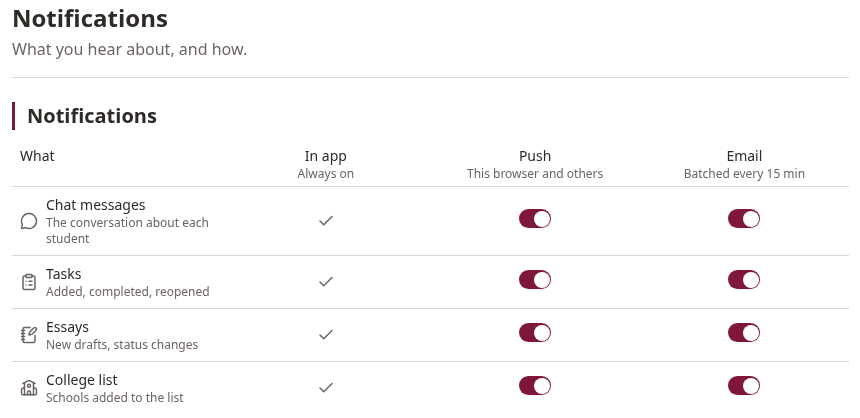
The fictional practice’s notification grid, cropped to focus on activity and delivery channels. In-app notifications stay on; Push and Email can be set for each activity. Browser push setup is separate from these switches.
Set up family notification email#
- In the portal's notification settings, enter a notification email and choose Save.
- Enter the six-digit code sent to that address.
- Choose Verify, then enable the desired email activity switches.
This email verification code is separate from the portal PIN.
Find a missing alert#
- Confirm the change appears on the task, essay, or conversation.
- Check its activity row and delivery channel in Notifications.
- For push, check this browser's setup and notification permission. For email, check the verified address and batching interval.
- Check Muted chats. Chat notifications → Mute this student suppresses that student's chat push and email, but keeps in-app activity. Unmute from Notifications to resume delivery.
Last updated November 20, 2026