Chapter 05 · Building and working with college lists
Building and working with college lists
Turn research into a useful shortlist, choose the right view, and carry the same schools into application planning.
On this page
Add colleges to a list#
- Open the student and choose Colleges → List Building.
- Select Add Colleges, in the empty state or toolbar.
- Search for a school or use filters, open a result, and add it to the list. On a phone, the + beside the school name opens Add to List.
- Use the header's return navigation to go back to the list.
The list's own filter searches schools already added. Add Colleges searches the wider catalog. See college research.
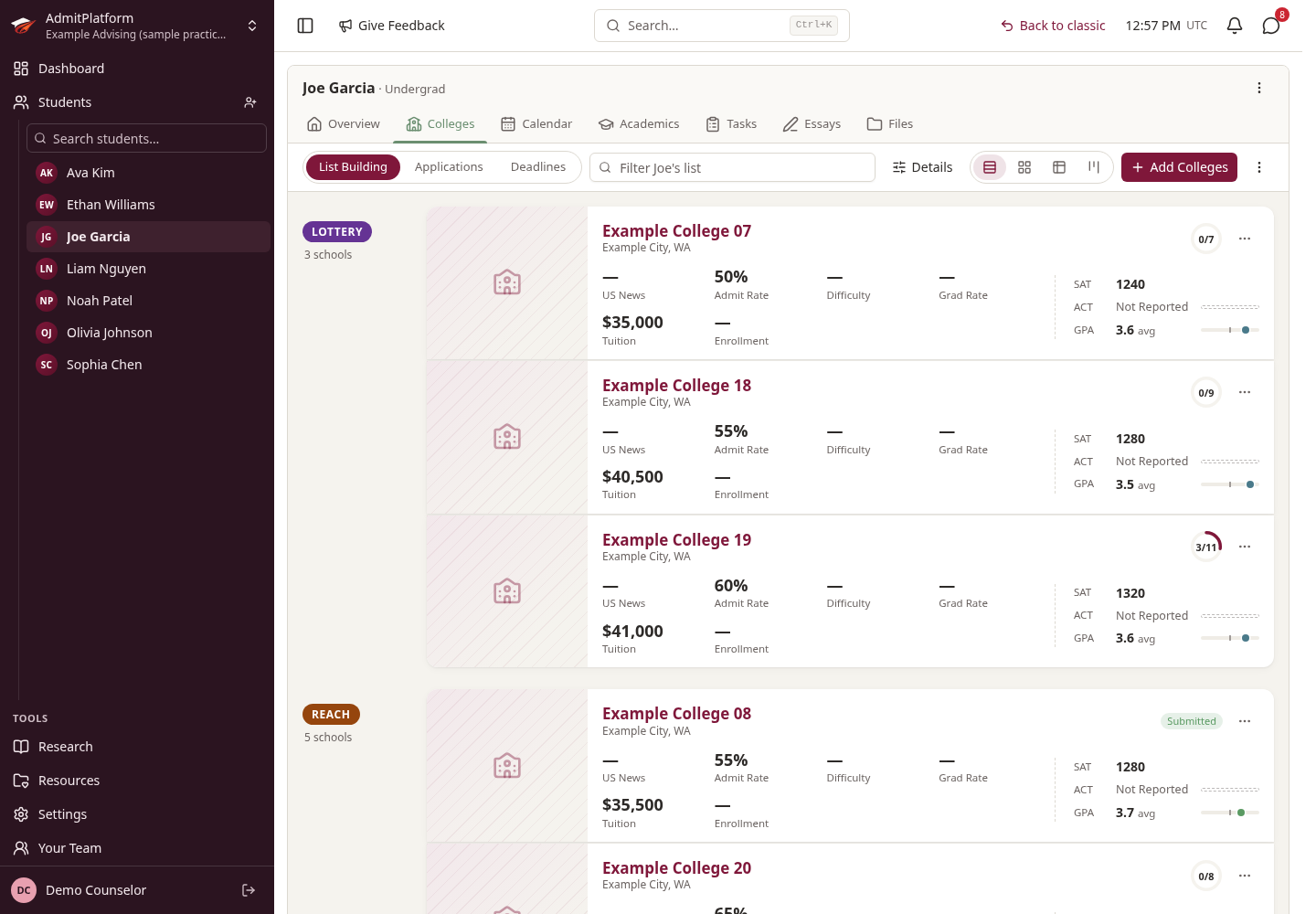
List Building in the local sample practice. All students, colleges, and numerical school values shown here are fictional. Open the image for a full-size view.
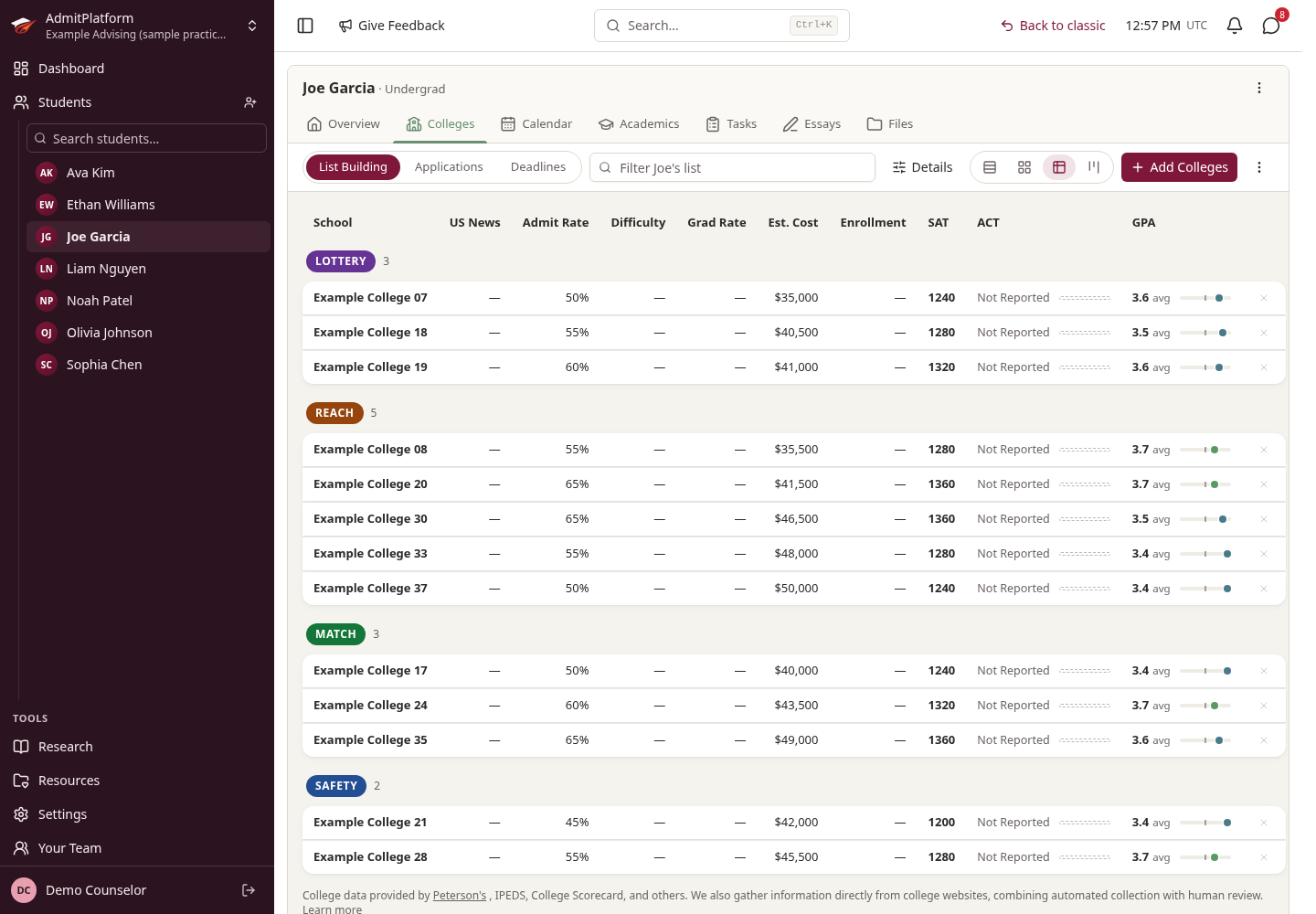
Table view in the fictional practice. Missing values remain visible as dashes rather than being treated as zero.
Change the view or columns#
- Choose List Building, Applications, or Deadlines.
- In List Building, choose Cards, Grid, Table, or Board. Use Details to select displayed fields.
- In Applications, choose Cards, Table, or Board. Details is available in Table only.
- On a phone, use the mode menu and Display options. Wide Board layouts are not offered there.
The browser remembers supported view and field preferences. Deadlines has its own timing view.
Set fit and notes#
- Open the school's list entry.
- Choose a fit label and enter Why is this college a good fit?
- Save the changes.
On a List Building board, dragging a school between fit lanes changes its fit. Applications Board does not support dragging.
Create or edit another list#
- Open List options → Create Another College List, or use New List in the list navigation.
- Name the list and save.
- Use Edit List to rename it.
- Use the list navigation to switch lists.
Applications belong to the student and school, rather than to a particular list.
Check list balance and early plans#
Open the list summary from the list name. Review the distribution of fit labels and the count of schools without an application. If the summary flags multiple Early Decision plans or a Restrictive Early Action plan, open the applications and check the schools’ policies with the student.
Add a custom column#
With custom fields enabled, open the student’s list in Table view and choose + in the column header. Name the field, choose text, number or date, and decide whether the family may edit values in the portal. Choose Add field, then enter a value in the college’s row.
A field created here belongs to this student. To use the same field across the practice, choose Add team field in Settings → Features. Open a custom column’s header menu to rename or remove it. If you later add a field with the same name, Restore brings back its previous values.
Share college lists with the family#
- Open Overview → Portal Links → Portal settings and enable Show college lists in the portal.
- Open an individual school entry to adjust Show on student portal.
- Use the note's own visibility control when sharing notes.
Student-created lists stay visible to the student. For access links, see family portal. For submission work, see applications.
Last updated November 20, 2026