Chapter 01 · Finding your way around the practice
Finding your way around the practice
See what’s coming up across your practice, then open a student’s record to focus on their next steps.
On this page
Open a student#
- Choose Students in the practice navigation.
- Select the student's name to open Overview.
- Use the student navigation to open Colleges, Calendar, Academics, Tasks, Essays, or Files.
- Use the header breadcrumb or return chip to go back from a detail page. On a phone, open the navigation drawer for practice tools.
Review the practice Dashboard#
- Choose Dashboard.
- Review application totals, upcoming deadlines, outstanding checklist items, and outcomes by school.
- Open the relevant student and application to update the underlying work. The dashboard summaries follow those records.
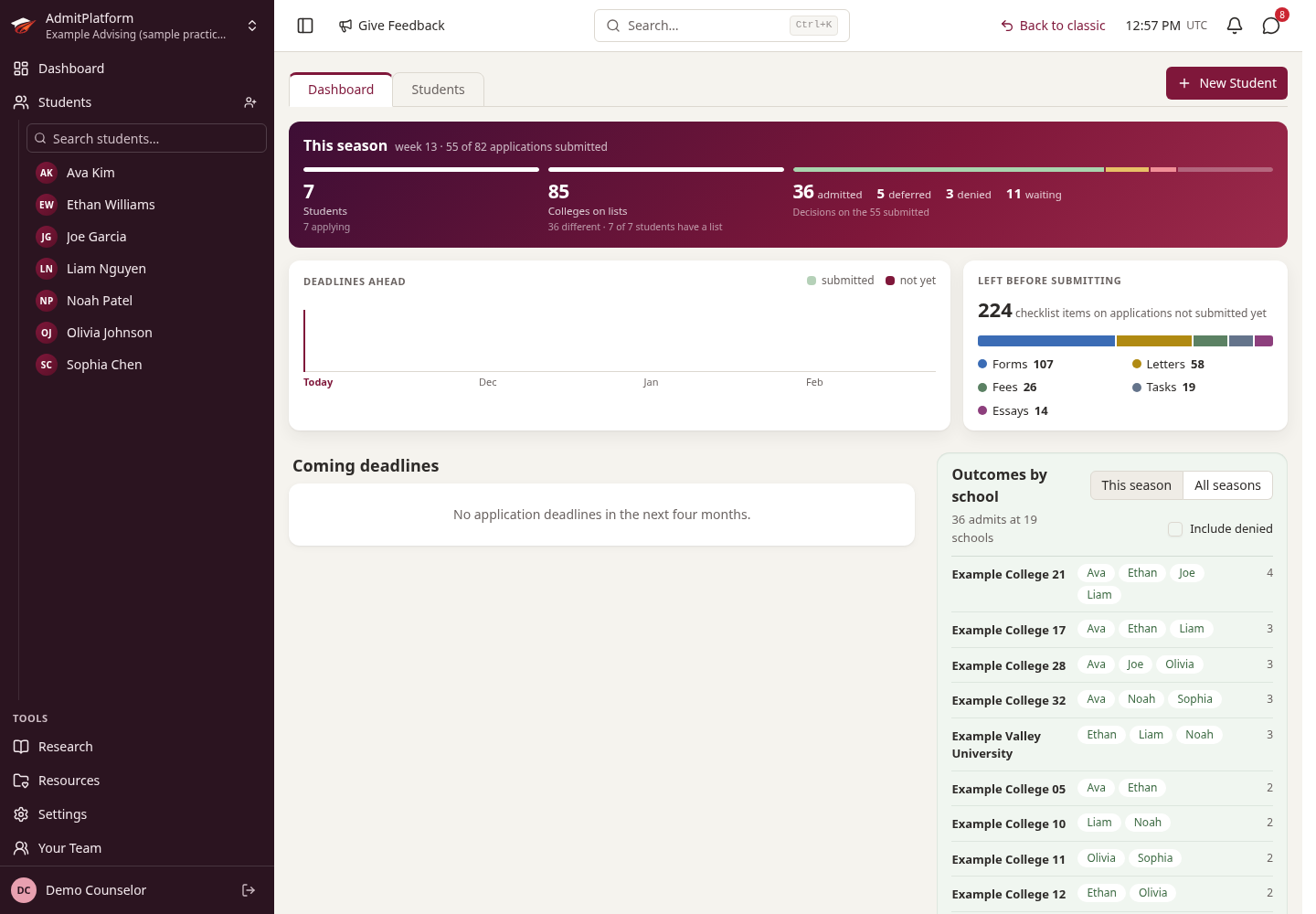
Earlier local sample capture with fictional records. Current controls may differ; open the image for a full-size view.
Review outcomes in Reports#
- As an owner or administrator, open Reports.
- Choose Entry year and, when advisors are enabled, All Students or My Students.
- Switch between Counts and Percentages, then review Decisions and Where students get in.
- Expand the submitted-applications notice to open applications without a recorded decision.
- Choose Export to download the results by school as Excel or CSV.
Reports include submitted or decided applications, including archived students, and exclude withdrawn applications.
Search the app or switch practices#
Press ⌘K on Mac or Ctrl+K on other keyboards to open the command palette. Start typing a student, school, task, essay or file name, or the setting you want. With a student highlighted, press Tab to see their workspace pages and Esc to go back.
If you belong to multiple practices, use the practice switcher to change caseloads. On the Which team today? screen, Remember my choice sets the practice to open next time.
Use row shortcuts#
- Right-click a supported row on desktop, or press and hold it on a phone, to open its actions. Task and essay rows also offer a ⋮ menu.
- For a student, choose Open, Open in a new tab, or Go to to jump to a workspace section. Message the family appears when chat is enabled.
- On desktop, point at a supported row and press ⌘K or Ctrl+K to find its actions in the command palette.
Find practice tools#
- Research searches the college catalog. To add results directly to a student's list, start at that student's Colleges → Add Colleges instead.
- Resources holds reusable documents and templates.
- Time tracking records work for each student once an owner or administrator turns it on in Settings. See logging time and using a timer.
- Settings contains personal preferences and the practice controls available to your role.
- Back to app in this help center opens the app; select a student there to continue.
Start with adding students or Joe's tutorial.
Last updated November 20, 2026