Chapter 08 · Essays, drafts, and review
Essays, drafts, and review
Keep each prompt, current draft, revision history, and review decision together without confusing the essay with its files.
On this page
Create or find an essay#
- Open the student's Essays, or open an essay from an application checklist.
- Choose Add Essay to create one and enter its title and school association where applicable.
- Open the essay and select Prompt, Limits, Due Date, or Notes to edit those details. Use Save in editors that show it.
Essays opens in Tiles view. Switch to List for compact rows, and use By Last Edit to find recently changed writing. Start draft on an empty essay starts its draft workflow.
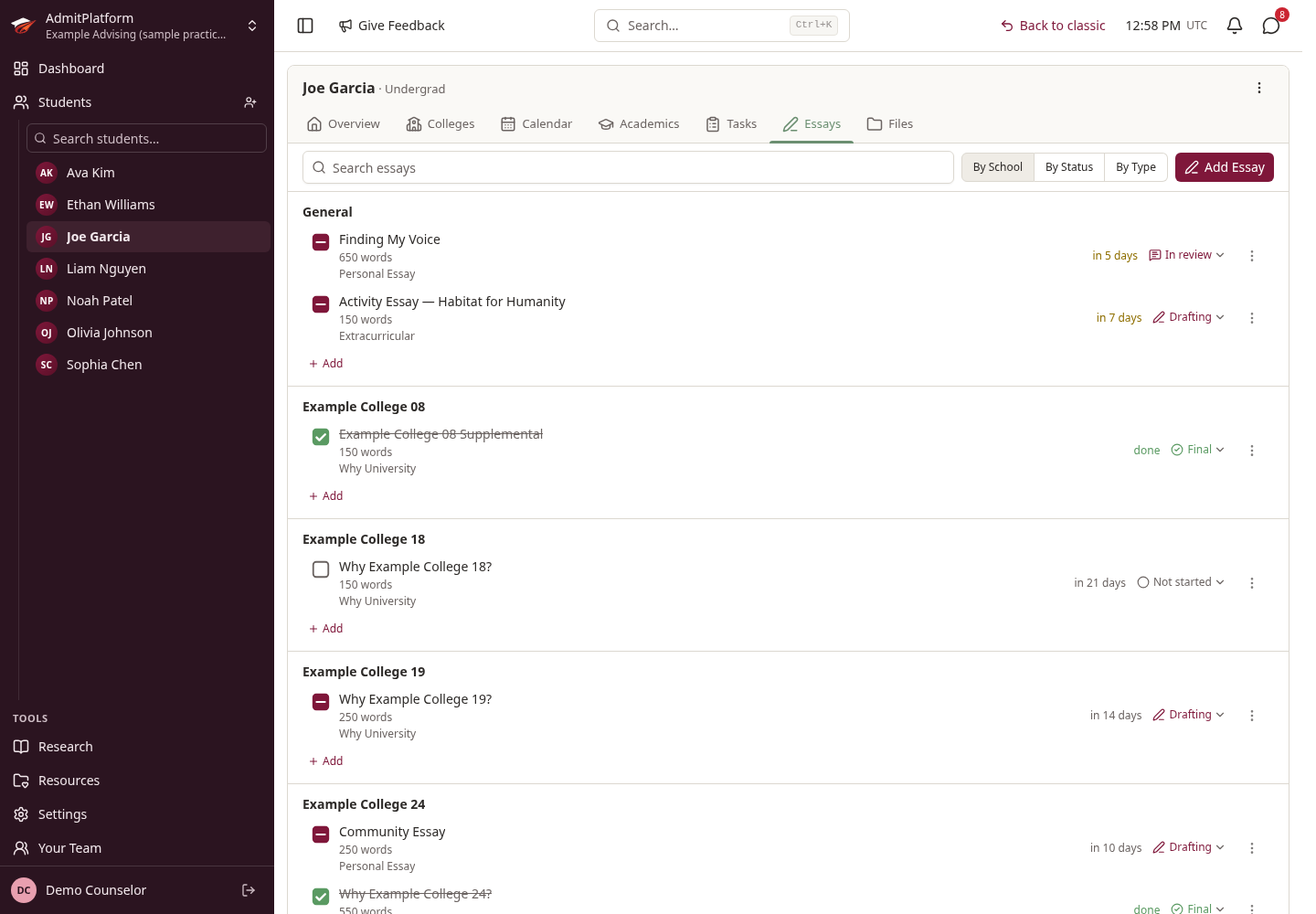
Earlier local sample capture with fictional records. Current controls may differ; open the image for a full-size view.
Add and revise the draft#
- Open the essay and choose Create Draft, From Google Drive when connected, or Drop draft here or click to browse to upload a file.
- For a Drive-backed draft, choose Open in Google Drive. For an uploaded file, choose Download to Edit.
- Upload a revision with New Version, or drop it into the revised-draft area.
- Expand Previous Drafts to download an earlier version. The current draft stays at the top.
A Drive import creates a new Google file; it does not keep the original Doc's identity or continuous revision history. See Google Drive.
Track review#
- Open the essay's status control.
- In the family portal, choose Submit for Review on a draft. As a counselor, use Change status → In review.
- As the counselor, choose Send back for revision or Mark as Final for an essay in review. Choose Reopen to return a final essay to drafting.
- Use Change status for other permitted transitions.
Families can submit writing for review. Counselor review decisions and essay deletion are not family actions.
Keep references separate from drafts#
- Under Reference Materials, choose Attach File or drop in a file.
- Use Brainstorming Ideas to add an idea.
- Use Remove from essay to detach reference material without deleting the underlying file.
A reference attachment is not the current draft. For shared worksheets, see files and resources.
Last updated November 10, 2026