Chapter 10 · Calendars, meetings, and calendar feeds
Calendars, meetings, and calendar feeds
Review deadlines and meetings, manage dates, and subscribe from another calendar app.
On this page
Change the calendar view#
- Open a student's Calendar.
- Choose Month, Week, Day, or Year. On a phone, the view picker also includes Timeline.
- Use the previous/next controls to move through dates, or Today to return to today.
- On a wide screen, use Show Timeline when available to show the event list alongside the calendar.
The selected date and view are reflected in the address.
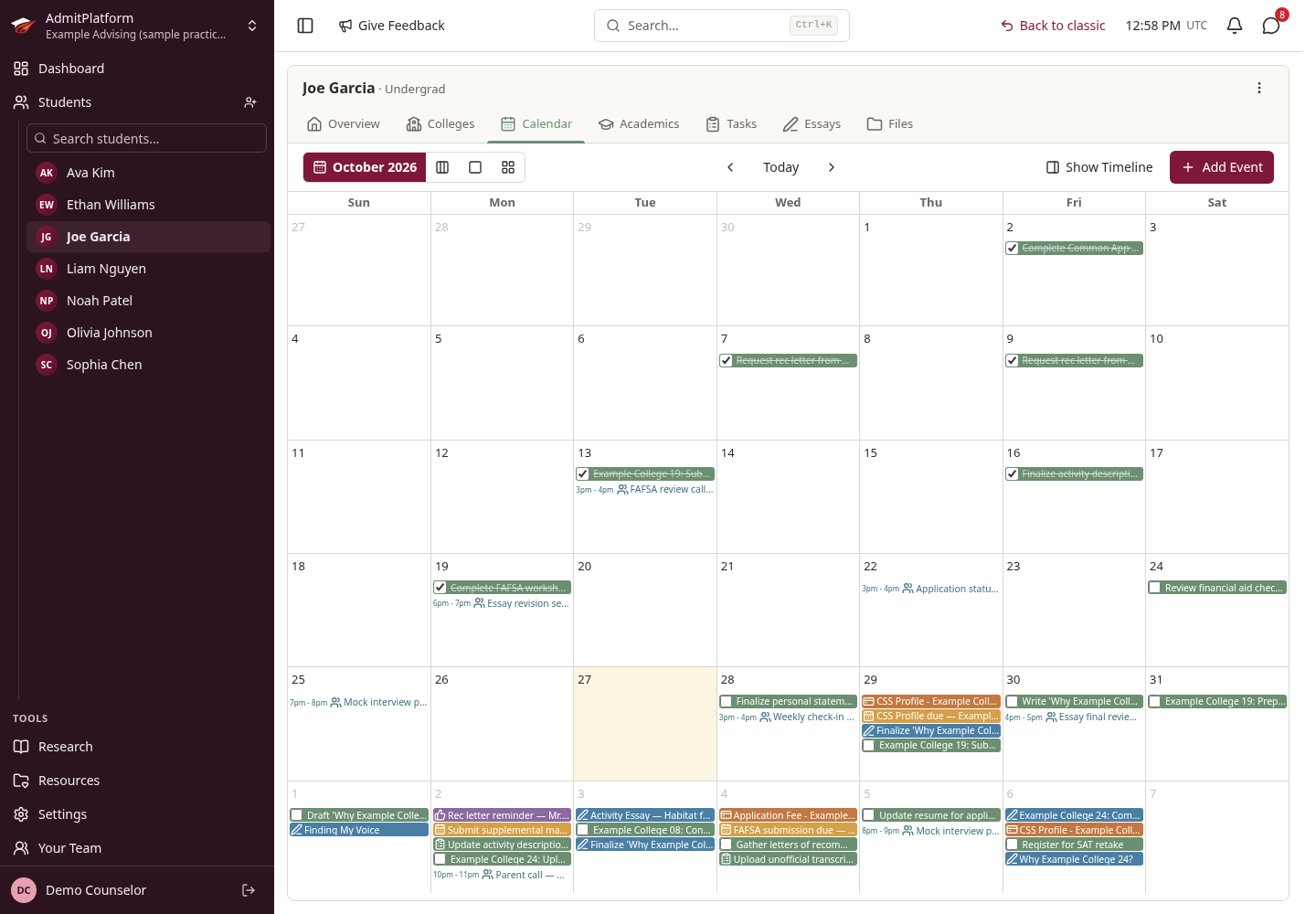
Earlier local sample capture with fictional records. Current controls may differ; open the image for a full-size view.
Add or edit an event#
- Choose Add Event (the + button on a phone), or select a date.
- Choose the event type and enter Title, dates, and optional Description or School.
- For timed events, enter start/end times and check the timezone. For an all-day event, use its dates instead.
- Save. Select the event later to open its card, then Edit to change its details. A one-day date can be changed on the card itself.
A linked task or essay date belongs to that work item. Remove due date clears its date without deleting or completing the task or essay; Delete removes a standalone event.
Set up meetings#
- Open Settings → Calendar & Meetings.
- Review Meetings or Calendly Meetings, depending on feature availability.
- When Calendly is available, use Your Calendly to connect your own account. Connected counselors book through Calendly; the Enable adding meetings directly in AdmitPlatform setting controls manual entry for other counselors.
- For an existing Calendly booking, open the calendar event and choose Reschedule or Cancel meeting to use its booking links.
Administrators manage practice meeting options. Turning meeting creation off leaves existing meetings on the calendar.
Match a Calendly booking to a student#
In Settings → Calendar & Meetings, open your Calendly connection and select which event types families can book. Families see those choices when adding a meeting from their portal calendar.
If a booking is missing, check the Calendly sync indicator on the student calendar and use its sync action. Look in the notification bell for Calendly booking needs a student. Open it, identify the booking by its invitee, and assign it to the correct student. For an unrelated invitee, use the option to stop asking about that email.
Subscribe from another calendar#
- Open Settings → Calendar & Meetings → Calendar Sync.
- As an administrator or owner, open the Team calendar feed controls and copy the subscription address for the desired scope.
- Add the address as a subscribed calendar in your calendar app.
Feed links grant access to the included schedule. Regenerate or disable a compromised feed. Subscriptions are read-only and refresh on the calendar provider's schedule; make edits in AdmitPlatform.
If a date looks wrong, check the selected range and timezone, then open the source task, essay, application, or event.
Last updated November 22, 2026