Chapter 15 · Student files and reusable resources
Student files and reusable resources
Manage student documents, attach files to tasks and essays, and reuse materials from Resources.
On this page
Upload a student file#
- Open the student's Files.
- Use the upload control to choose a file from your computer, or import from Google Drive when connected.
- Wait for the upload or import to finish, then open the file.
A Google Drive import creates a new Google file rather than linking the original. Repeating the import creates another copy.
Find and organize a student’s files#
In Files, choose Not attached to find uploads that are easy to miss when browsing by essay or task. Search starts in the selected folder. Switch to All to search across the student’s files. On a phone, open the browse controls to choose a different group.
Use Pin to overview on a frequently used file to make it available on the student’s Overview. To organize several uploads at once, select the files, then use the bulk actions to edit tags or assign a school. Open a file to review its linked work and sync status.
Organize reusable resources#
- Open Resources in the practice navigation.
- Choose Add Resource → Upload from computer or Add from Google Drive.
- Use folders and tags to organize it. On a wide screen these appear beside the table; on a phone they appear as filters.
- Select resources for bulk actions, or drag them onto a folder or tag to organize them.
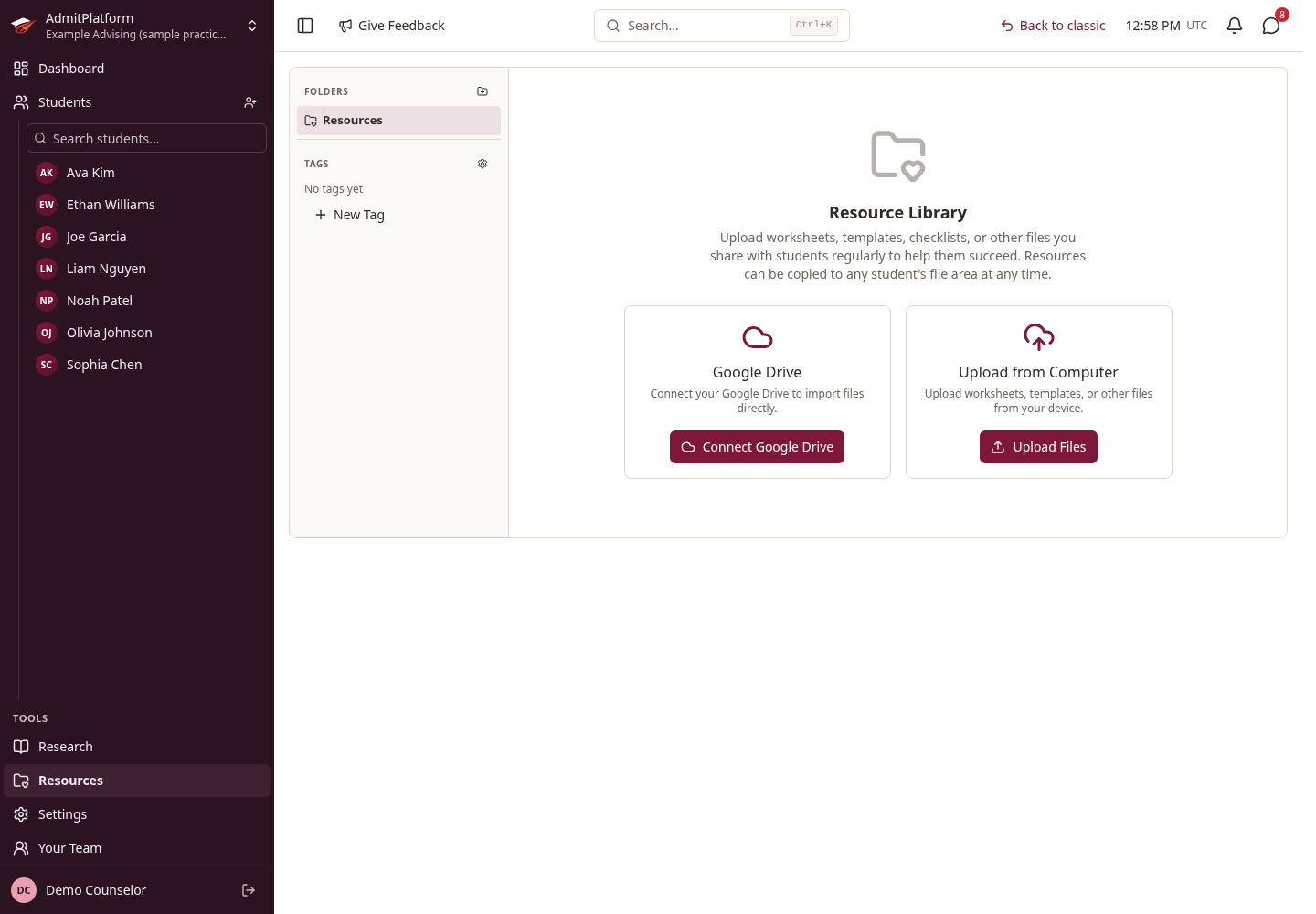
Earlier local sample capture with fictional records. Current controls may differ; open the image for a full-size view.
Give a student a resource#
- Open the resource's copy-to-student action.
- Choose the student and the options in the dialog, then confirm the copy.
- Open the student's Files to find their copy.
- To attach it to work, open the task or essay and choose Attach File.
An essay reference attachment is separate from its current draft. Use the essay draft controls for writing that will be reviewed.
Remove an attachment or file#
Use Remove from task or Remove from essay to unlink an attachment. Deleting the file itself can also remove its Google Drive copy. For recovery limits, see deletion.
If a file seems missing, clear folder/tag filters and check the student's Files. For a visible file that will not open, check Drive permissions and sync.
Last updated November 20, 2026