Chapter 20 · Moving from CounselMore
Moving from CounselMore
Bring over your roster, shared college lists, and applications one student at a time.
On this page
Unlike AdmitPlatform, CounselMore has no bulk export functionality, so moving between software platforms requires per-student exports and imports.
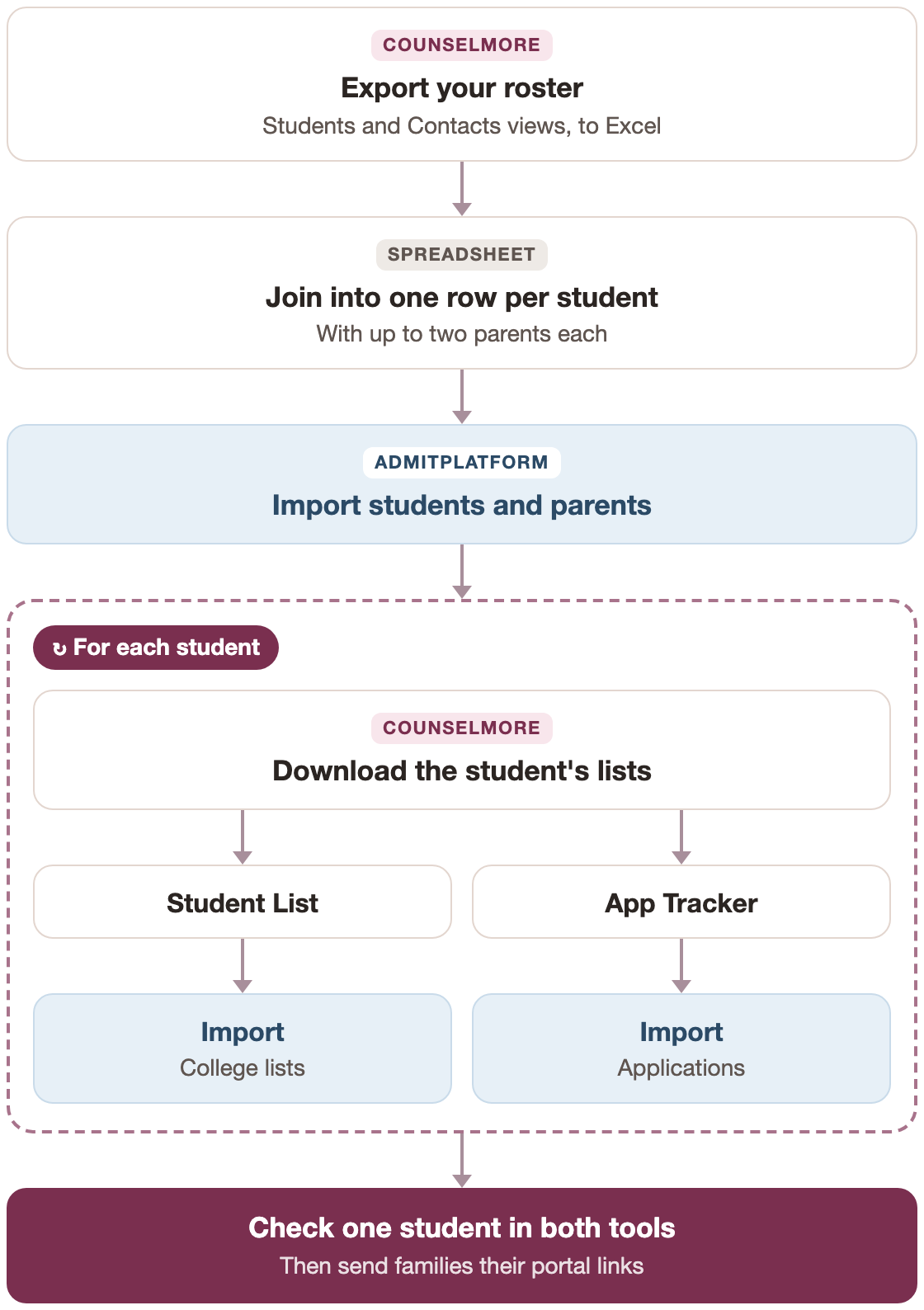
Try the whole path with one student first, then do the rest. Keep your original exports somewhere only your practice can see.
1. Roster: students and parents#
- In CounselMore, open Settings → Reporting → Contact Information. Export Students and Contacts to Excel (how). Check the graduation year and status filters, and compare the counts with your roster.
- In a spreadsheet, join the two files into one row per student. Match parents to students carefully, not by last name alone. There's room for two parents; keep any others in your copy.
- In AdmitPlatform, choose Students → Import → Students and parents and check the field mapping in the preview.
Note: Students are matched by email, so re-running a file can create duplicates for students without one. CounselMore's Active, Prospect and Archived statuses don't carry over.
2. Lists: once per student#
Download each student's Student List and App Tracker with Menu → Download Excel (how).
- Student List → Students → Import → College lists. One row per college with Student Email and College, plus State, Fit and approved notes if you like. Choose Leave them as they are for existing records.
- App Tracker → Students → Import → Applications. Map Submitted Date and Decision only from real submissions and outcomes; a target date or chosen round isn't a submission. Admissions Outcomes can help you check decisions.
Review the matched colleges before each import, and use Past imports to find a report before re-running a file. Importing and exporting records lists the supported fields.
3. The rest: save and rebuild#
None of these come over in an import. Save what you want to keep, then rebuild only what you still use.
| In CounselMore | What to do |
|---|---|
| Assignments and meeting notes | Save the reports. Recreate open tasks with their due dates and audience. |
| Status and Strategy columns, tagged My Lists | Keep a private copy. Rebuild topical lists as curated lists. |
| Financial Fit and financial reports | Keep aid offers apart from your invoices. Add current awards by hand. |
| Essay Google Docs | Leave originals in Drive to keep their history. Importing a Drive document makes a new copy. |
| Broadcast Station and automations | List what's scheduled. Turn the old ones off before new ones start, so families don't get two. |
Messages, attachments, custom fields and Bio Banner details also stay behind; keep copies where you can.
Check before you share#
Compare a few students in both tools: a past student and one with a guardian. Check decisions, upcoming deadlines, and what the family sees in the portal and in Drive. Then send portal links.
Last updated November 27, 2026