Step 5 of 6 · Practice with Joe Garcia
Plan Joe's next step
Create a dated task, add instructions, and find it in Calendar.
On this page
Create the task#
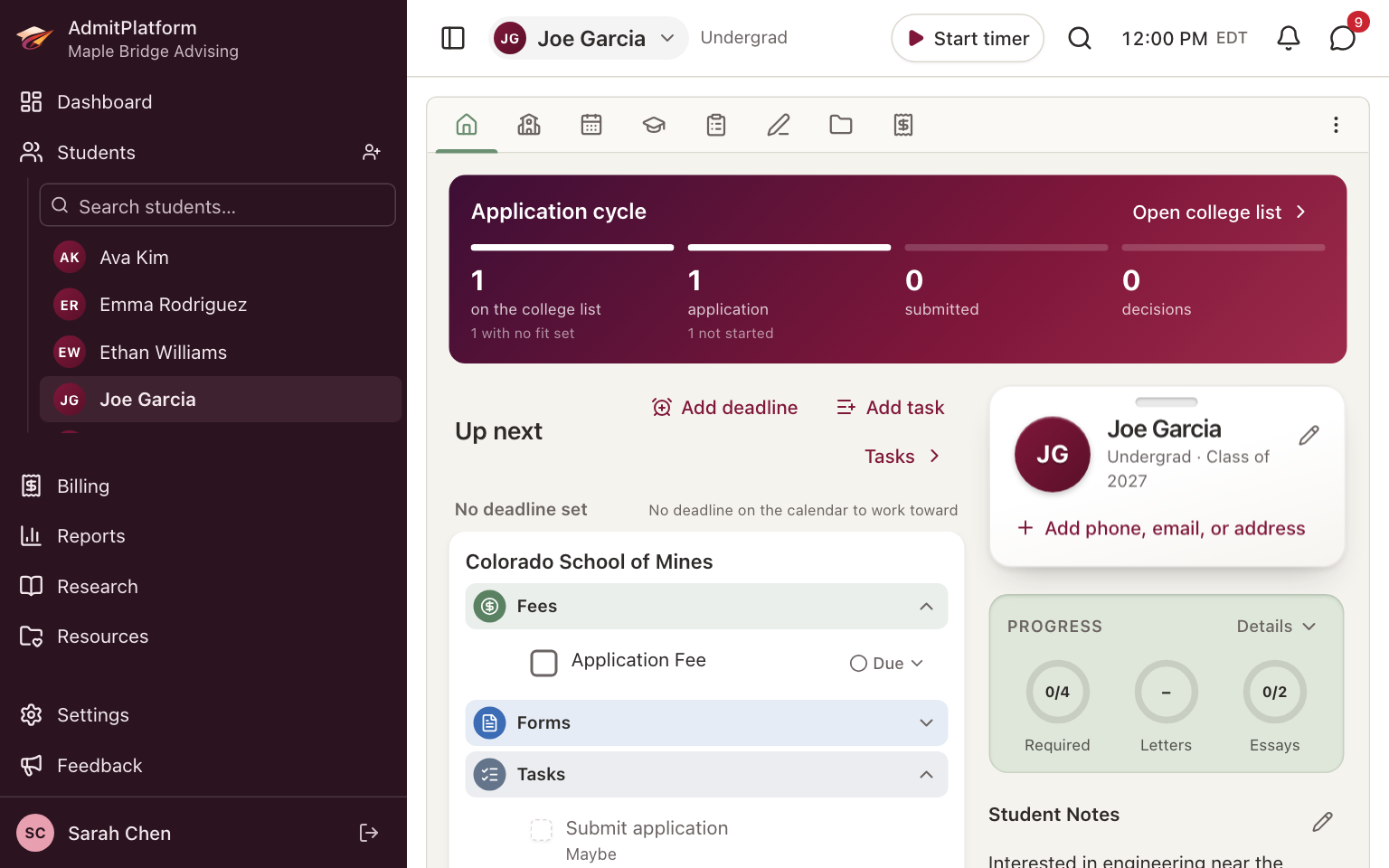
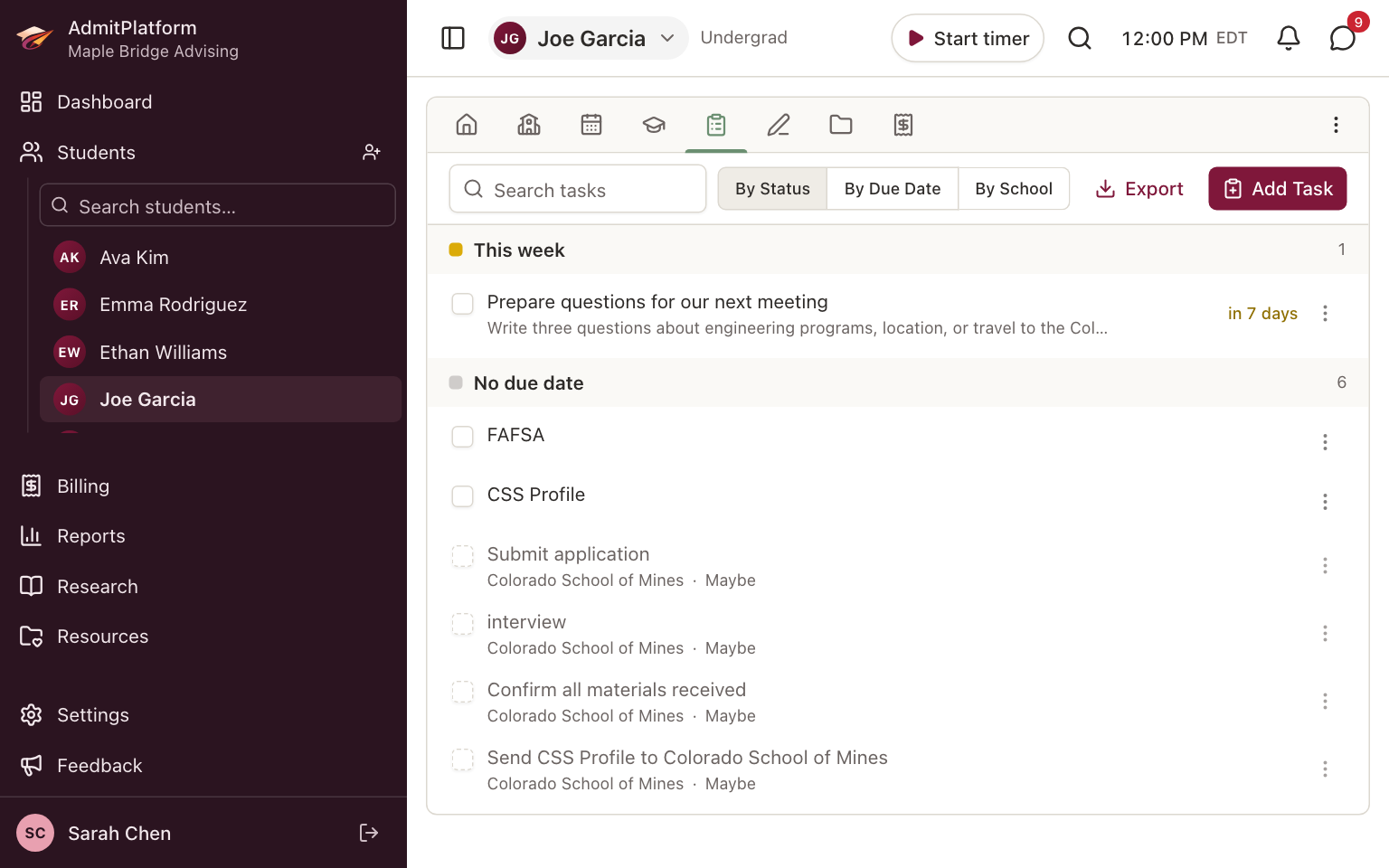
- Open Joe's Tasks and select Add Task. On a phone, use the clipboard-plus icon in the toolbar.
- Enter Prepare questions for our next meeting in Title.
- Set Due Date (Optional) to a date next week. Leave School (Optional) blank for this general task.
- Select Save, then open the task's title.
- In Notes, enter: “Write three questions about engineering programs, location, or travel to the Colorado Rockies.” Notes save as you type; wait for Saved before closing.
Find and update it#
- Return to Tasks. On desktop, choose By Due Date to group tasks by date; By School groups them by college.
- Open Joe's Calendar and navigate to the date you selected. Select the task's entry, then Open task to return to its details.
- To change the deadline, select the due-date bar in the task and choose a new date. Undated tasks stay in Tasks but have no dated calendar entry.
- Select Mark Complete to try completing this practice task. Select Mark Incomplete to reopen it.
For meetings and other events, see Calendar.
Last updated November 22, 2026