Step 3 of 6 · Practice with Joe Garcia
Researching a college list
Search for a college, add it to Joe's list, and choose a list view.
On this page
Start in Joe's workspace.
Add a college#
- Open Colleges and select Add Colleges in the empty list.
- In the search field, enter Colorado School of Mines. If the search tabs are visible, use Search for this name lookup.
- Open the school's name to review its profile. Use the header breadcrumbs to return to the search results.
- Select Add to List beside the result. On a phone, this is the + button beside the school name. If Joe has multiple lists, select the destination list.
- The button becomes a checked list badge. Select that badge to open the entry editor. Enter “Explore engineering programs and location near the Colorado Rockies” in the college notes, then select Done.
- Return to Joe's college list using the header breadcrumbs. The school now appears on the list.
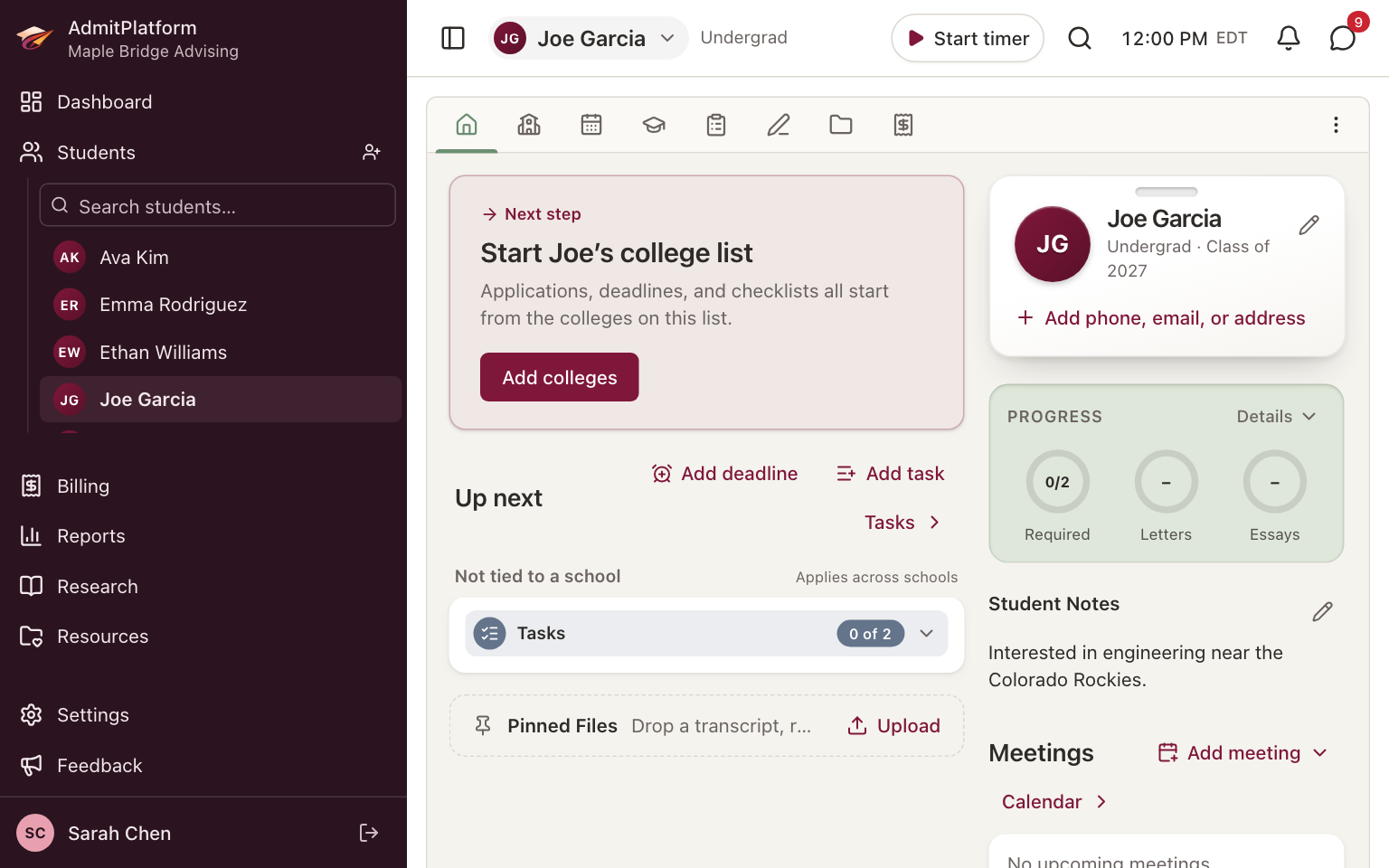
On desktop, the search's bottom list dock also lets you open the list or drag a result into a fit group. On a phone, use the + button to add schools; the bottom fit band is a summary, not a drag target.
Change the view#
- In List Building, choose Cards, Grid, Table, or Board from the view controls.
- Open Details to choose the data shown. On a phone, open the Display options menu for views and detail fields.
- Switch to Applications to track application work, or Deadlines to see its timing. On phones these modes are labeled List, Apps, and Dates.
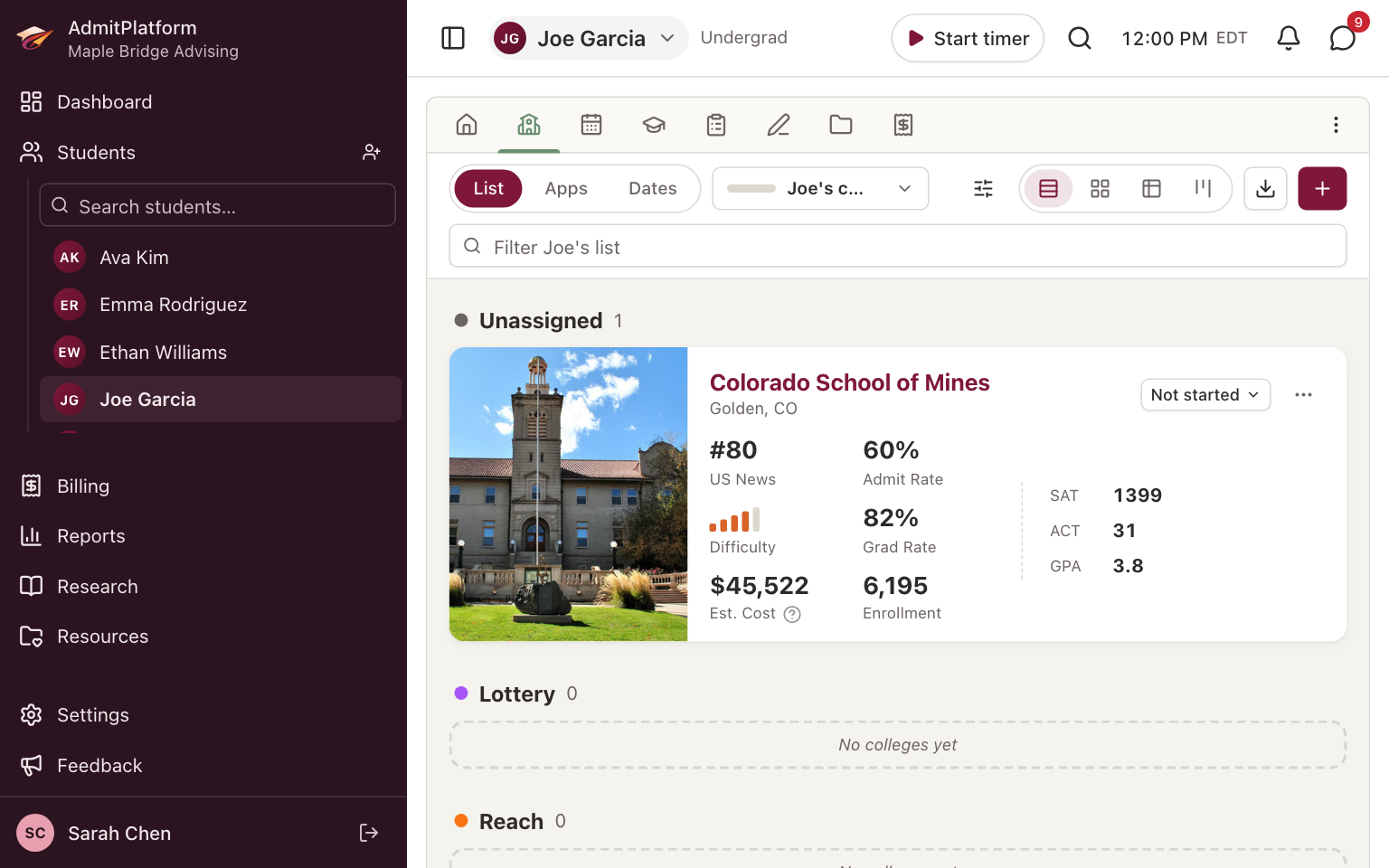
List Building's Board lets you drag schools between fit groups. Applications Board groups schools by progress; change application status inside the application rather than dragging its card.
For scores, requirements, and campus life, see Researching colleges.
Last updated November 22, 2026