Step 4 of 6 · Practice with Joe Garcia
Tracking an essay
Create an essay, add a draft, and find its current version.
On this page
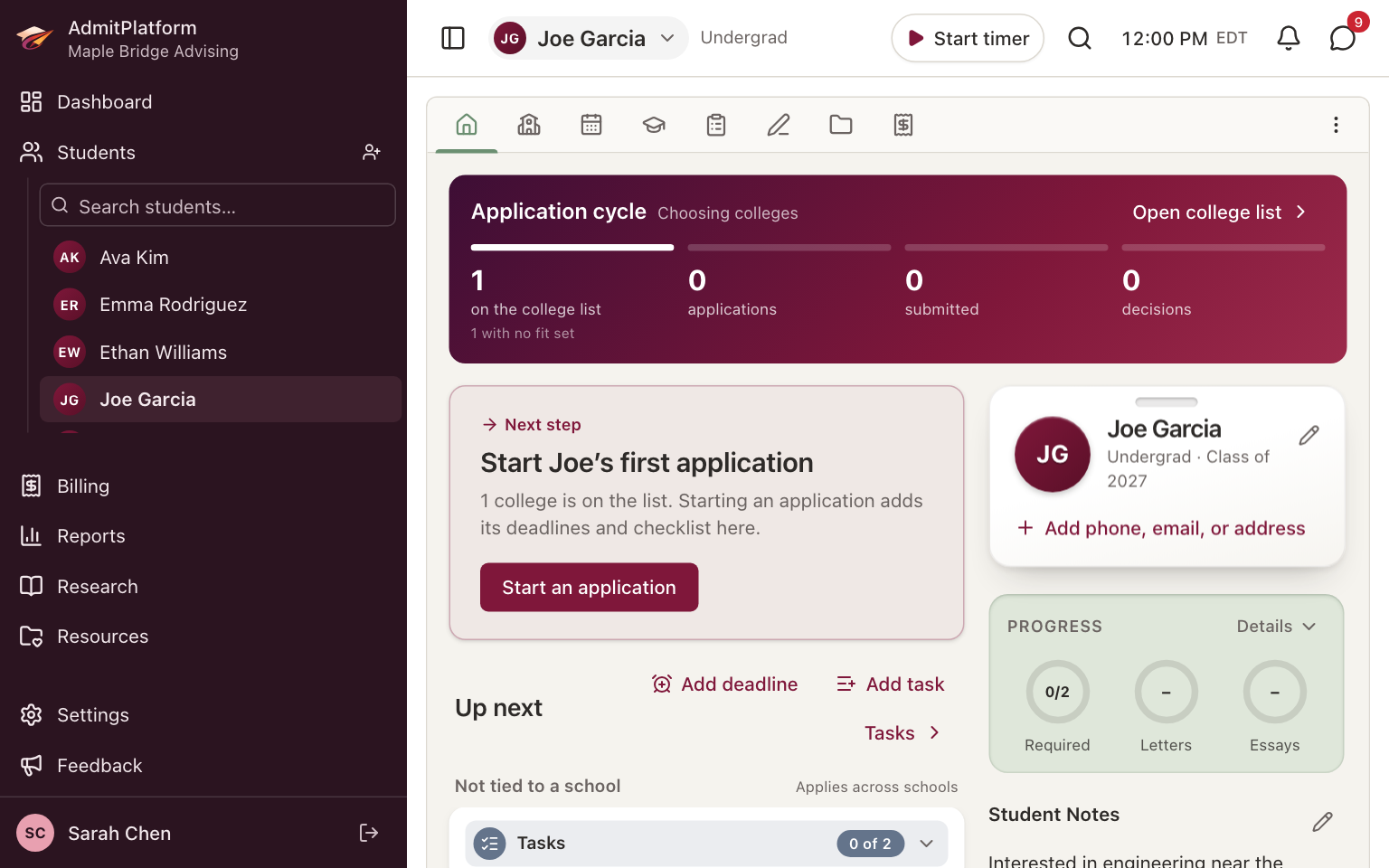
Start in Joe's workspace. An essay can stand alone; you do not need an application plan first.
Create the essay#
- Open Essays and select Add Essay. On a phone, use the pen icon in the toolbar.
- Enter Joe's practice essay in Title.
- Enter Describe something you enjoyed learning. in Prompt. This is the tutorial's sample prompt.
- Leave Category, Due Date, and School blank for this general essay, then select Save.
- Select the essay's title to open its details.
Essays initially appear as tiles. Use the toolbar's Tile view and List view icons to switch. On desktop, By School, By Status, By Type, and By Last Edit regroup the essays.
Add a draft#
- In the essay's Draft section, select Create Draft, or drop a sample document into Drop draft here or click to browse.
- Open the created file with Open in Google Drive or Download to Edit, depending on its storage.
- Add a few lines of fictional practice writing. For a downloaded file, save your changes locally, then use New Version to upload the revision.
- Open Previous Drafts to find earlier versions. The document in Draft is the current version; Reference Materials holds supporting files separately.
With Drive connected, From Google Drive lets you select an existing document instead. See Drafts and review for review statuses and document access.
Optional: start an application#
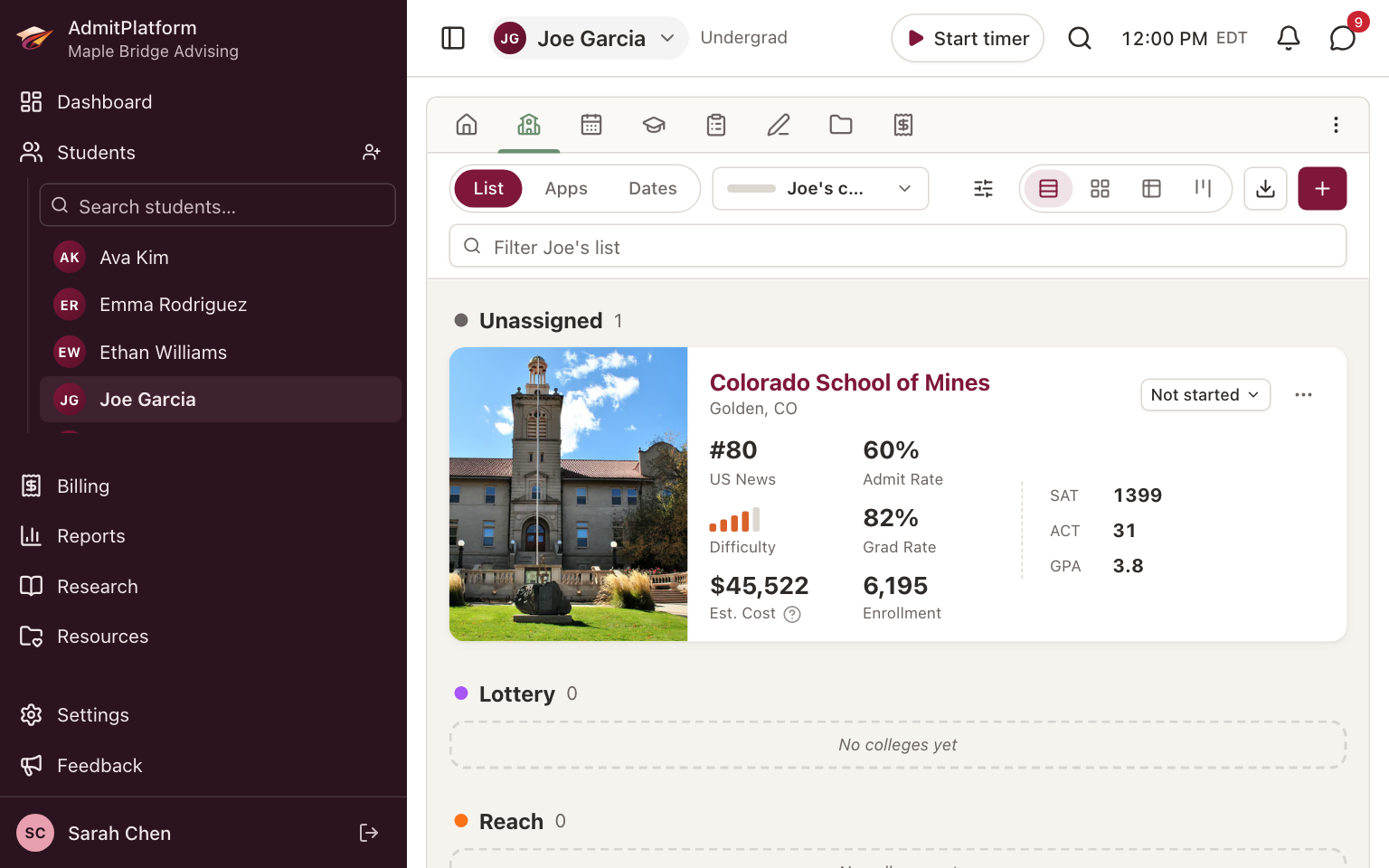
- Open Joe's Colleges, switch to Applications, and select Not started for the school you added.
- Choose Not sure yet to create an application in Planning without confirming an admission plan. Choosing a specific plan as a counselor can confirm it immediately.
- Open the application to see its requirements and linked work. See Applications for the full planning and submission workflow.
Last updated November 22, 2026